

Picture this: you’re all set to binge-watch your favorite show or check the latest memes when suddenly, your go-to app has vanished from your iPhone home screen. Panic sets in, and you start questioning if you’ve accidentally entered a parallel universe. Don’t worry; it’s not a sci-fi plot twist—just a common hiccup that many iPhone users face.
Whether it’s a rogue update or a sneaky setting, apps can mysteriously disappear, leaving users scratching their heads. But fear not! This guide will help unravel the mystery of those elusive icons and get your home screen back in tip-top shape. Get ready to reclaim your digital space and restore order to your app universe.
Understanding The Issue
Apps disappearing from the home screen represents a common challenge for many iPhone users. Several factors contribute to this occurrence.
Common Reasons For Apps Disappearing
Users often discover that apps vanish due to accidental deletion. Unintended removal can occur while navigating the home screen. Another frequent cause involves the organizational settings within the device. App Library settings can cause apps to hide from the home screen. Using Focus modes may lead to certain apps being temporarily unavailable. Additionally, hidden apps can occur when users enable restrictions on their devices.
The Impact Of Software Updates
Software updates significantly influence app visibility. Every new update might alter settings, affecting how apps appear. Users sometimes experience app changes immediately after an update due to unexpected bugs. Interface design changes can lead to confusion, resulting in apps seemingly disappearing. Understanding these impacts can aid users in troubleshooting issues effectively. Regular updates often include fixes that enhance app stability and accessibility, making them vital for maintaining optimal device performance.
Troubleshooting Steps
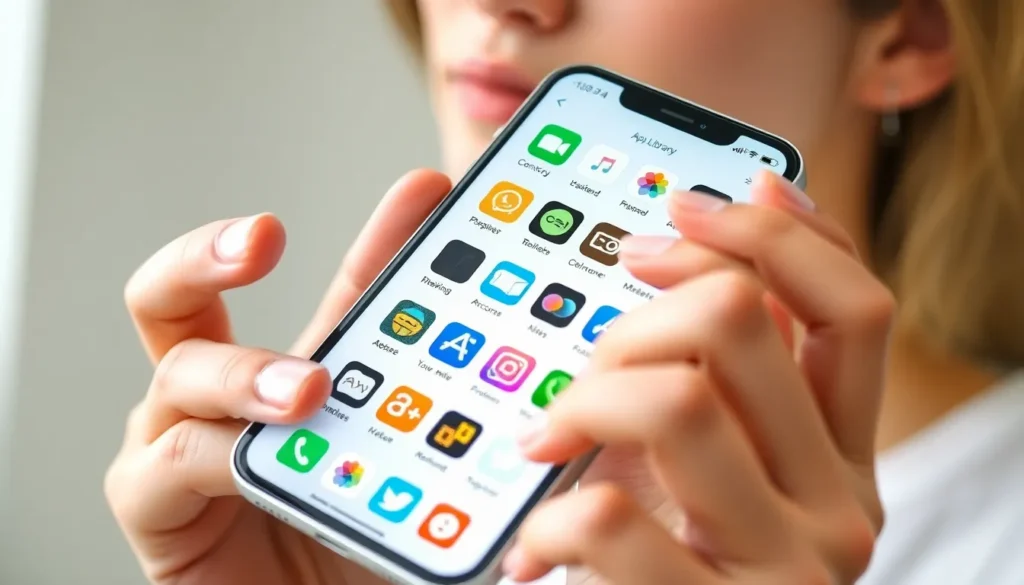
When apps disappear from the home screen, several troubleshooting steps can assist in locating them.
Check App Library
First, swipe left on the home screen to access the App Library. This feature organizes apps into categories, making it easier to find missing ones. Scroll through the lists to check for the vanished apps. If apps remain in the App Library, tap and hold the app’s icon, then select “Add to Home Screen” to restore it.
Search Functionality
Utilize the search function as a quick way to locate missing apps. Pull down on the home screen to reveal the search bar, then type the app’s name. If the app appears in the search results, you can launch it from there. Users can also see the app’s location by pressing and holding the icon; this will show the folder it’s in or if it’s in the App Library.
Restart Your iPhone
Sometimes, a simple restart can resolve this issue. To restart an iPhone, press and hold the side button and volume button simultaneously, then slide to power off. Once the device is off, wait a few seconds before turning it back on. This action can refresh the system, possibly restoring any missing apps back to the home screen.
Restoring Disappeared Apps
Restoring missing apps can be straightforward. The following methods help in retrieving those vanished icons.
Reinstalling Apps From App Store
Reinstalling apps is an effective way to restore them. Users can open the App Store and search for the missing application by name. Once identified, tapping the cloud icon or “Get” button initiates the download process. After reinstallation, the app appears back on the home screen. It’s worth noting that users can also check their purchase history in the App Store to find previously downloaded apps. This ensures that any app, even if deleted, is easily accessible for download once again.
Checking Restrictions Settings
Restrictions settings may hide apps from view. Users should navigate to their device’s Settings app, select “Screen Time,” and tap “Content & Privacy Restrictions.” Under “Allowed Apps,” users can verify if the missing applications are toggled off. Reenabling these options restores visibility on the home screen. Understanding these settings helps maintain control over app accessibility while ensuring essential applications remain in sight. Adjusting the restrictions can quickly resolve issues related to missing apps.
Preventing Future Occurrences
Taking proactive steps can prevent the recurrence of apps disappearing from the home screen.
Keeping Your iPhone Updated
Updating the iPhone consistently ensures optimal app performance. Apple frequently releases updates that include bug fixes and enhancements. These updates often resolve issues causing apps to disappear. Users should navigate to Settings, tap General, and select Software Update to check for the latest version. Regular updates not only maintain visibility but also improve overall device security.
Organizing Your Home Screen Properly
Organizing the home screen effectively reduces the risk of misplaced apps. Users can arrange apps into folders or utilize the App Library feature for better accessibility. Customizing home screen layouts allows for quick identification of apps. Positioning frequently used apps on the main screen enhances convenience. Moreover, avoiding clutter by removing unused apps helps significantly. These strategies contribute to a smoother user experience while minimizing future app visibility issues.
Missing apps from the iPhone home screen can be frustrating but it’s a common issue that many users face. By understanding the possible causes and employing the troubleshooting steps outlined, users can easily locate their apps and restore their home screen.
Maintaining an organized home screen and keeping the device updated can significantly reduce the chances of apps disappearing in the future. With a few simple strategies, users can enhance their experience and ensure that their favorite apps are always within reach. Staying proactive about app management not only saves time but also contributes to a more efficient and enjoyable iPhone experience.