

Picture this: you’re cruising down the highway, your favorite tunes blasting, and the sun shining through the windshield. But wait—what if you could supercharge that experience with apps that make your drive even better? Enter Apple CarPlay, the magic carpet ride for your iPhone. It transforms your car’s infotainment system into a tech-savvy companion, but there’s a catch: not all apps are automatically invited to the party.
Understanding Apple CarPlay
Apple CarPlay enhances the in-car experience for iPhone users. It integrates familiar apps and services directly into the vehicle’s infotainment system.
What Is Apple CarPlay?
Apple CarPlay is a software platform that connects an iPhone to a vehicle’s dashboard. This integration allows users to access apps like Maps, Music, and Messages seamlessly through the car’s display. Users experience a simplified interface designed for easy navigation and interaction while driving.
Benefits of Using Apple CarPlay
Using Apple CarPlay offers numerous advantages. First, it promotes safety by minimizing distractions; users can control apps through voice commands or the car’s touchscreen. Second, navigation becomes easier with turn-by-turn directions displayed prominently. Third, it provides access to music and podcasts, allowing for a personalized audio experience. Lastly, updates occur automatically when compatible apps receive upgrades, ensuring users enjoy the latest features.
Compatibility Requirements
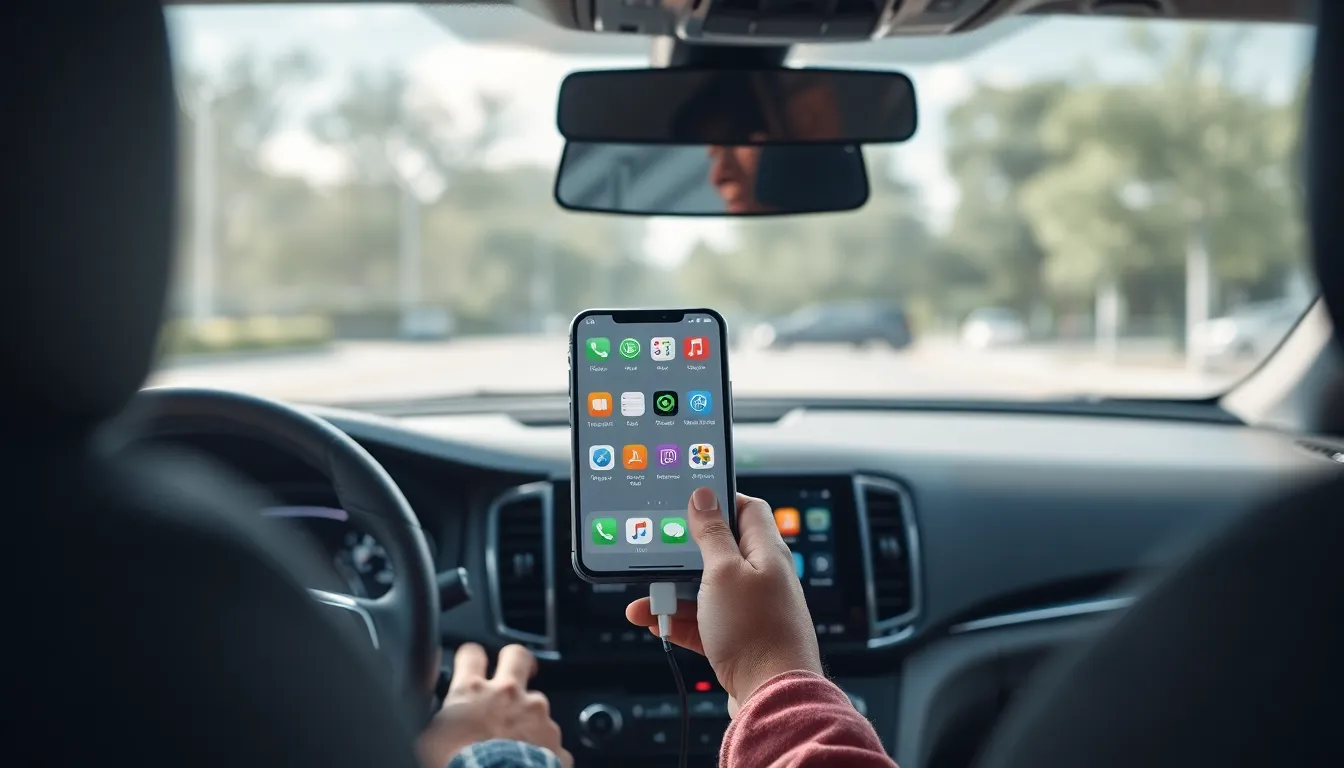
Apple CarPlay enhances the driving experience, but specific compatibility requirements exist for optimal use. Knowing the supported devices and apps ensures smooth operation.
Supported Devices
Apple CarPlay works with various iPhone models. iPhone 5 and later versions support the software. In addition, a compatible car model is necessary, with manufacturers like Ford, Honda, and BMW offering integration. Check the vehicle’s infotainment specifications to confirm compatibility. It’s crucial to ensure both iPhone and vehicle meet requirements for seamless functionality.
Supported Apps
Numerous apps are compatible with Apple CarPlay. Navigation tools like Apple Maps and Google Maps provide essential routing functionalities. Music services, including Spotify and Apple Music, enhance in-car audio experiences. Communication apps like WhatsApp and Messages deliver convenient messaging options. Access to these supported apps requires the latest version updates for iPhone. Compatibility with Apple CarPlay streamlines driving tasks effectively.
How to Add Apps to Apple CarPlay
Adding apps to Apple CarPlay enhances the driving experience by providing users with their favorite applications right on the dashboard.
Using iPhone Settings
Accessing settings on the iPhone allows users to manage which apps appear in CarPlay. First, open the Settings app. Then, select General, followed by CarPlay. Choose the vehicle for setup. Users can reorder the apps by tapping and holding the three horizontal lines next to each app. To enable or disable apps, select them and toggle the switch accordingly. This customization streamlines app usage, ensuring only preferred apps are displayed during drives.
Via the App Store
The App Store provides another method for adding compatible apps. Start by launching the App Store on the iPhone. Use the search function to find desired apps. Ensure that the selected app explicitly states compatibility with CarPlay. After installing an app, its icon automatically appears in CarPlay as long as it supports the feature. Regularly checking for updates ensures users benefit from the latest features and improvements, enhancing the overall experience with CarPlay.
Troubleshooting Common Issues
Issues can arise when using Apple CarPlay. Here are solutions for common problems.
App Not Showing Up
Apps may not always appear in CarPlay despite installation. First, check if the app is compatible with CarPlay. Compatible apps will generally indicate this on the App Store. Ensuring the app is updated helps as newer versions often fix bugs or compatibility issues. In the iPhone Settings, navigate to General, then CarPlay, and select the vehicle. Verify that the app is enabled for use. Users can also try restarting the iPhone or the car’s infotainment system; this simple action often resolves the issue.
Connection Problems
Connection issues can hinder the CarPlay experience. If a connection is lost or fails to establish, check the cable or wireless connection. A faulty USB cable or connector may disrupt functionality, so replacing the cable often helps resolve the issue. Ensure the iPhone’s Bluetooth and Wi-Fi settings are activated, as these elements may be required for specific connection types. Restarting both the iPhone and the vehicle can refresh the connection between them. If problems persist, checking for software updates on both the iPhone and the car system may provide necessary fixes.
Adding apps to Apple CarPlay can significantly enhance the driving experience. With the right setup users can enjoy seamless access to their favorite apps while keeping their focus on the road. By managing app settings through the iPhone’s interface and ensuring compatibility users can tailor their CarPlay experience to fit their needs.
Regular updates and troubleshooting tips help maintain optimal functionality. Users are encouraged to explore the range of supported apps to maximize the benefits of this technology. Embracing Apple CarPlay not only makes driving more enjoyable but also promotes safer navigation and communication on the go.