
Ever accidentally hidden an app on your iPhone and felt like you just lost a game of digital hide-and-seek? Don’t worry, you’re not alone. Many users find themselves in a frantic search for their favorite apps, wondering if they’ve been abducted by the tech gods. But fear not! Bringing those elusive icons back to your home screen is simpler than finding a cat video on the internet.
Understanding iPhone Home Screen Organization
iPhone home screen organization plays a crucial role in user experience. A well-organized home screen leads to improved accessibility for commonly used apps.
Importance of Home Screen Clarity
Clarity enhances efficiency when navigating apps. A clean home screen minimizes clutter, allowing users to locate essential apps quickly. Studies suggest users often save up to 10 minutes daily by streamlining their app layout. Improved focus occurs when distractions are reduced. Prioritizing frequently used apps on the home screen promotes ease of access. A clear layout can transform the overall experience, making routine tasks feel seamless.
Customizing Your App Layout
Customization enables personalization, reflecting user preferences. Rearranging apps into folders helps declutter the home screen. Grouping similar apps facilitates easier access and enhances organization. Setting priority for frequently used apps ensures quick retrieval. Users can also leverage widgets to display information at a glance. Creative layouts cater to individual needs, enhancing overall satisfaction. Engaging with customization options can lead to a more enjoyable iPhone experience.
Methods to Put Apps Back on Home Screen iPhone
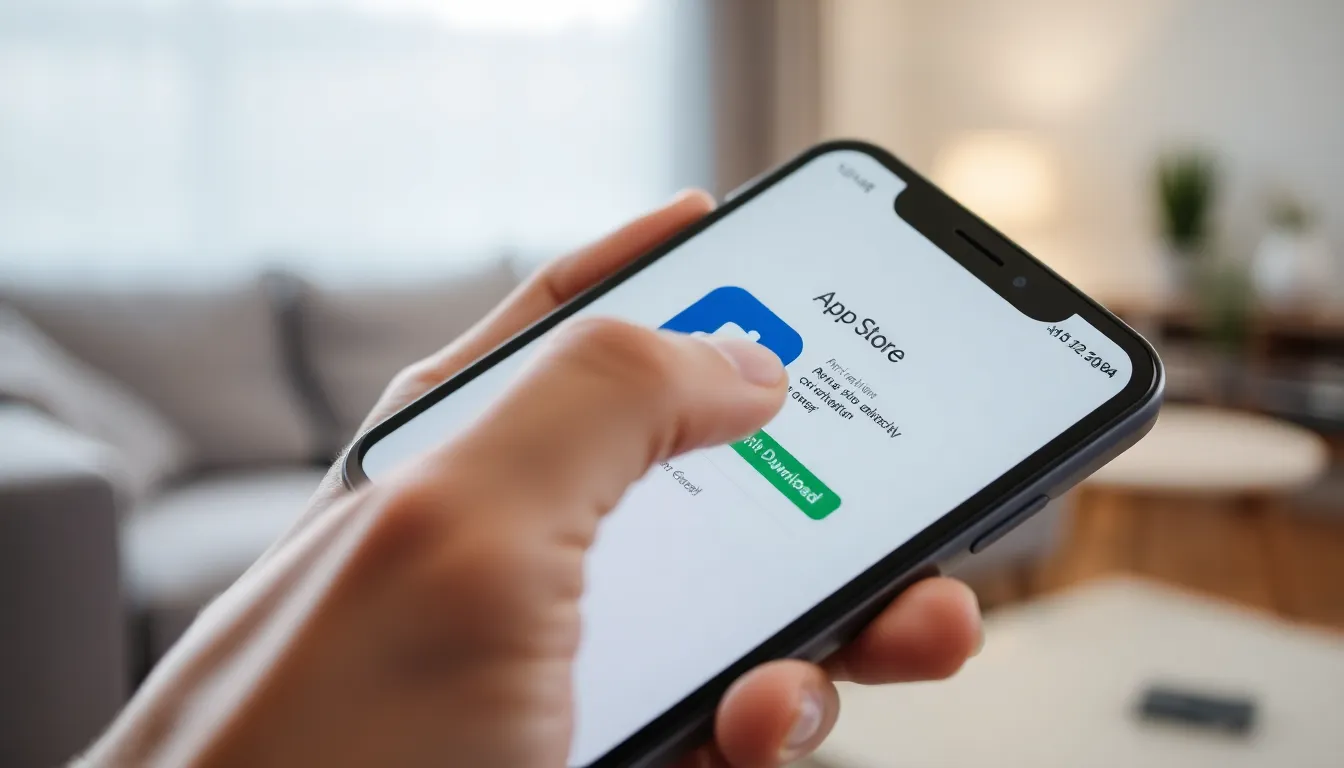

Users can easily return apps to the iPhone home screen through a couple of methods. Each method provides straightforward steps to resolve the issue efficiently.
Reinstalling Apps from the App Store
Reinstalling apps directly from the App Store serves as a primary method to restore missing icons. Users should open the App Store and tap on their profile picture located in the top right corner. Next, they can scroll down to the “Purchased” section to view apps previously downloaded. Once they locate the desired app, tapping the download icon allows for quick reinstallation. This action brings the app back to the home screen automatically.
Using the App Library Feature
The App Library feature provides a seamless way to find and restore hidden apps. Users can swipe left past the last home screen page to access the App Library. At the top, apps are organized into categories for easier navigation. Searching by typing the app’s name in the search bar allows for quicker results. Once they find the app, pressing and holding its icon brings up an option to add it back to the home screen. Tapping “Add to Home Screen” instantly resolves the issue.
Accessing Hidden Apps
Finding hidden apps on an iPhone can simplify navigation and improve efficiency. Users can restore lost icons using interactive features built into the device.
Searching for Apps
To search for hidden apps, swipe down on the home screen. This action brings up the search bar, allowing users to type the app’s name. Apps matching the search term appear instantly. Upon locating the desired app, pressing and holding its icon reveals options. Selecting “Add to Home Screen” brings the app back to the main display. Swift searching ensures minimal disruption to daily tasks.
Viewing Recently Deleted Apps
To check for recently deleted apps, head to the App Store. Tap on the profile icon located in the top right corner. Next, select “Purchased” from the account menu. This section shows all apps, including those removed in the past. Users can tap the cloud icon next to any app for immediate reinstallation. Restoring deleted apps returns them to the home screen, streamlining the app retrieval process.
Troubleshooting Common Issues
Common issues can arise when trying to put apps back on an iPhone’s home screen. Following the steps correctly can help users resolve these problems efficiently.
Apps Not Appearing on Home Screen
Apps might not appear on the home screen despite being installed. This can happen due to changes in settings or accidental hiding. Users should check for any existing folders; it’s possible the app got misplaced within those. Additionally, confirming that the app is installed can clarify whether it simply needs to be re-added. To locate an app quickly, swiping down on the home screen allows for a search, making it easy to find it by name. After locating the app, pressing and holding its icon lets users choose the option to add it back to the home screen.
Restoring from Backup
Restoring apps from an iCloud or iTunes backup serves as an effective solution for missing apps. Users must first ensure their device is connected to Wi-Fi to initiate the restore process. Accessing Settings, they can navigate to General and select Transfer or Reset iPhone. Following the prompts will lead them to restore from a backup. Once the correct backup is selected, the apps will reinstall automatically. This method guarantees that all previously installed apps return to the home screen, minimizing any disruption in access to necessary applications.
Restoring apps to the home screen on an iPhone doesn’t have to be a daunting task. With the methods outlined in the article users can quickly regain access to their favorite applications. A well-organized home screen not only enhances accessibility but also streamlines daily tasks.
By utilizing the App Library and search features users can efficiently locate and restore hidden apps. Customizing app layouts can further improve the overall user experience making it more enjoyable and tailored to individual preferences. Embracing these simple techniques transforms the iPhone into a more user-friendly device.